

Is Your Home Office Setup Causing Neck or Back Pain?
Ergonomic Tips for Remote Workers
Research on remote and hybrid work has found that many home-based workers report musculoskeletal discomfort, especially in the neck, back, shoulders, and wrists. Makeshift workspaces, including couches, beds, kitchen counters, and dining tables, may contribute to poor posture and repetitive strain over time.
Ergonomic tips for remote workers may help reduce neck strain, back discomfort, wrist pain, and posture-related fatigue linked to prolonged computer use. A supportive chair, proper monitor height, neutral wrist position, and regular movement breaks may improve comfort while working from home.
Remote Work Ergonomics at a Glance
- Chair support and monitor height may help reduce neck and back strain
- Keyboard and mouse placement may support neutral wrist positioning
- Movement breaks may help reduce stiffness from prolonged sitting
- Small-space and low-budget adjustments can still support better posture
What Is Remote Work Ergonomics?
Remote work ergonomics refers to adjusting a home workspace to support posture, comfort, and movement during computer use. Ergonomic adjustments may help reduce unnecessary strain on the neck, shoulders, wrists, lower back, hips, and legs.
Quick Ergonomic Setup Tips
| Workspace Area | Simple Ergonomic Tip |
| Monitor | Keep the screen near eye level |
| Chair | Keep feet flat on the floor |
| Wrists | Keep wrists straight while typing |
| Mouse | Place it close to the keyboard |
| Back Support | Support the lower back while sitting |
| Movement | Stand or stretch every 30–60 minutes |
Why Does Remote Work Cause Neck, Back, and Wrist Discomfort?
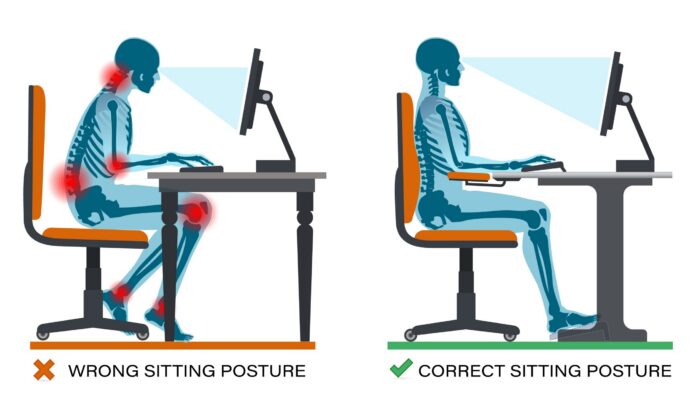
Remote work may contribute to discomfort when the body stays in awkward or unsupported positions for long periods. Looking down at a laptop, sitting without lumbar support, typing with bent wrists, or working from a couch or bed may increase strain on muscles, joints, and nerves.
How Can Remote Workers Set Up a Better Chair Position?
A supportive chair is one of the most important parts of a home office ergonomic setup. The chair should help support the natural curve of the lower back while allowing the feet to rest flat on the floor or on a stable footrest.
Helpful adjustments may include:
- Using firm lower back support or a rolled towel behind the lumbar spine
- Keeping knees level with or slightly below the hips
- Leaving a small gap between the seat edge and the back of the knees
- Relaxing the shoulders while keeping elbows close to the body
How Should a Computer Monitor Be Positioned?
A computer monitor should generally be placed about an arm’s length away, with the top of the screen near or slightly below eye level. This position may help reduce the need to lean forward or look downward for long periods.
For laptop users, a stand, stack of books, or external monitor may help raise the screen. An external keyboard and mouse can also help keep the arms and wrists in a more neutral position.

What Is Neutral Wrist Position?
Neutral wrist position means the wrists stay mostly straight while typing or using a mouse. Wrists that bend upward, downward, or sideways for long periods may contribute to repetitive strain symptoms.
Keyboard and mouse adjustments may include keeping the mouse close to the keyboard, keeping forearms roughly parallel to the floor, and avoiding prolonged reaching.
How Can Remote Workers Reduce “Tech Neck”?
“Tech neck” refers to neck strain that may develop when the head tilts forward while looking down at a screen. The farther the head moves forward, the more strain may be placed on the neck and upper back.
Remote workers may reduce neck strain by raising the screen, sitting closer to the workstation, keeping the head aligned over the shoulders, and taking posture breaks during the day.
How Often Should Remote Workers Move?
Movement breaks may help reduce stiffness, fatigue, and posture-related discomfort during prolonged sitting. Some workers may benefit from standing, walking, or stretching briefly every 30 to 60 minutes.
Simple movement options may include walking during phone calls, standing between tasks, stretching the neck and shoulders, or alternating between sitting and standing when possible.

Are Walking Pads Worth It for Remote Workers?
Walking pads and treadmill desks have become more common in remote work environments, especially for individuals who spend long hours sitting at a computer. Some remote workers use walking pads during phone calls, meetings, or tasks as a way to reduce prolonged sitting throughout the workday.
For some individuals, alternating between sitting, standing, and light walking may help reduce stiffness and posture-related discomfort associated with prolonged desk work. However, walking pads may not be practical for every workspace, task, or home office setup.
Factors such as workspace size, balance, noise levels, and job demands may influence whether a walking pad is a realistic ergonomic option for remote work.
How Can Remote Workers Improve a Small or Low-Budget Workspace?
A home office does not need expensive equipment to be more ergonomic. Small-space and low-budget adjustments can still help support posture and reduce strain.
Useful options may include using books as a laptop riser, placing a towel behind the lower back, using a box as a footrest, and keeping work supplies within easy reach. For smaller apartments, foldable desks, wall-mounted work surfaces, or compact monitor stands may help create a more consistent workstation.
What Symptoms May Mean Your Setup Needs Attention?
Posture-related strain or repetitive computer use may contribute to symptoms in the neck, back, shoulders, wrists, hands, or legs.
Symptoms that may warrant medical evaluation include:
- Ongoing neck, back, shoulder, or wrist discomfort
- Numbness, tingling, or weakness in the arms or hands
- Headaches associated with posture or screen use
- Pain that interferes with work tasks or daily activities
Looking for Evaluation for Remote Work-Related Discomfort?
PainandInjury.com helps connect patients throughout New York, New Jersey, and Connecticut with providers offering orthopedic evaluations, rehabilitation services, pain management, and physical therapy for posture-related discomfort and repetitive strain symptoms.
Treatment recommendations vary depending on the symptoms being evaluated, activity demands, posture habits, and mobility limitations. Whether discomfort is related to work activities, repetitive movements, daily posture habits, sports participation, or non-work-related strain, Pain and Injury may help connect individuals with a doctor for evaluation and ongoing care options tailored to their needs.
To learn more about available appointments or provider locations, call 800-949-6100 or request an appointment.
Frequently Asked Questions About Work Ergonomics
What is the best ergonomic setup for remote work?
An ergonomic remote work setup may include supportive seating, proper monitor height, neutral wrist positioning, adequate lighting, and regular movement breaks.
Can working from home cause neck or back discomfort?
Working from home may contribute to neck or back discomfort when a workspace lacks proper chair support, monitor positioning, or movement breaks.
How high should my computer monitor be?
The top of the monitor should generally be near or slightly below eye level, with the screen about an arm’s length away.
Can poor ergonomics cause wrist pain?
Poor keyboard or mouse positioning may contribute to wrist discomfort, hand fatigue, or repetitive strain symptoms over time.
Are standing desks better for remote workers?
Standing desks may help some workers reduce prolonged sitting, but alternating between sitting and standing is often more useful than staying in one position all day.
When should I seek care for pain from working at home?
Medical evaluation may be appropriate if pain, numbness, tingling, weakness, or reduced mobility persists or interferes with work tasks or daily activities.
*This blog from Pain and Injury is intended for educational purposes only. It is not a substitute for professional medical advice, diagnosis, or treatment. Patient recovery is not guaranteed, and each patient’s results may vary. Always consult a qualified healthcare professional for a personalized care plan.